How to Add Fields to an Existing Grid with placeAfterProperty
When customizing the Modern UI in Acumatica, you may need to add one or more custom fields to an existing grid while keeping the column order consistent with the standard layout. The placeAfterProperty decorator provides a simple way to control where new fields are inserted.
If you need to place a field before another field, you can use placeBeforeProperty instead.
Scenario
Suppose you've added custom DAC fields named UsrPickingZone and UsrRequiresInspection to SOLine, and you want them to appear in the Sales Order Detail grid right after the Inventory ID column.
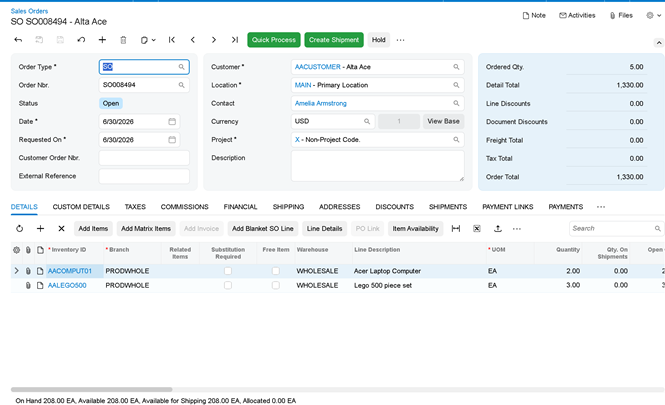
Solution
Create a Modern UI extension for the SOLine view and declare the custom fields by using the placeAfterProperty decorator.
Notice that the second field is positioned after the first custom field.
Finally, rebuild the Modern UI sources and publish the customization. After the screen is refreshed, both custom fields will appear in the Sales Order Detail grid in the specified order.
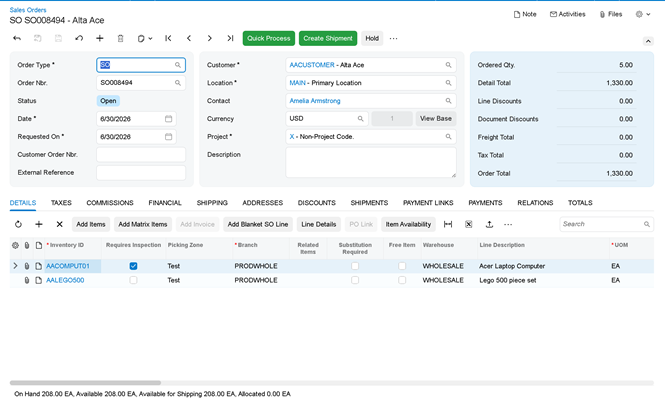
The placeAfterProperty decorator is a simple and clean way to insert custom fields into existing Modern UI grids. In most cases, you do not need to redefine the grid or modify the HTML layout. You only need to extend the correct view class and specify where the new field should be placed.
Comments are provided by Disqus, which sets its own cookies, including for advertising.