How To Add Back Existing User-Defined Fields in the Modern UI
This article will explain the process for adding back any existing user-defined fields (UDF) after an upgrade to the Modern UI (versions 2025R2+). In the Modern UI, there is no longer a separate tabs for UDFs, they can now be added to any section of the screen by using the Screen Configuration setting.
|
ℹ Only users with the System Administrator user role will have access to the Screen Configuration button, under Tools. |
Section 1:
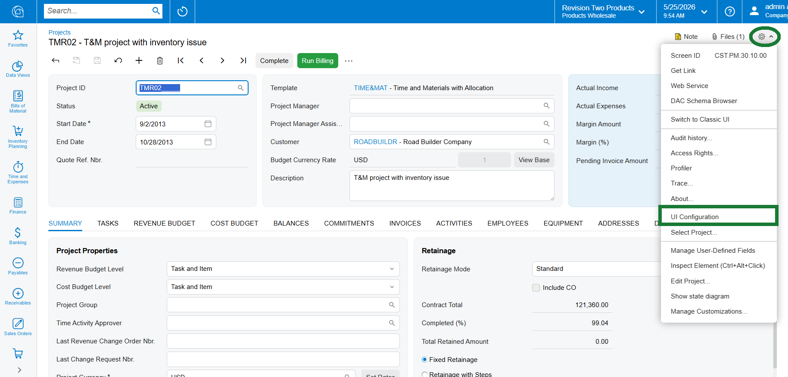
1. On the screen where you would like to add the UDF, select the Tools button and then select Screen Configuration.
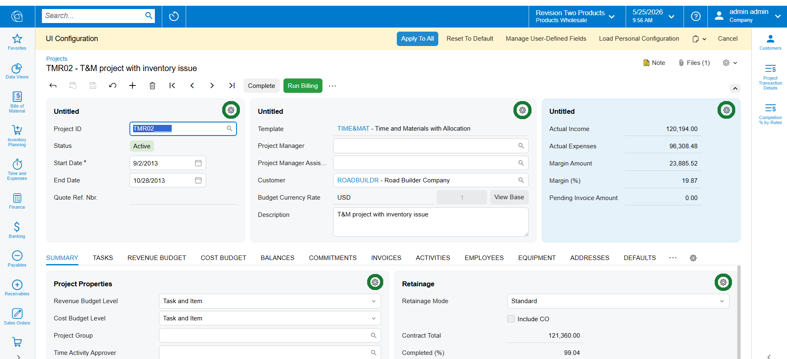
2. Select the Tools icon for the corresponding section of the screen that you would like to add the UDF to.
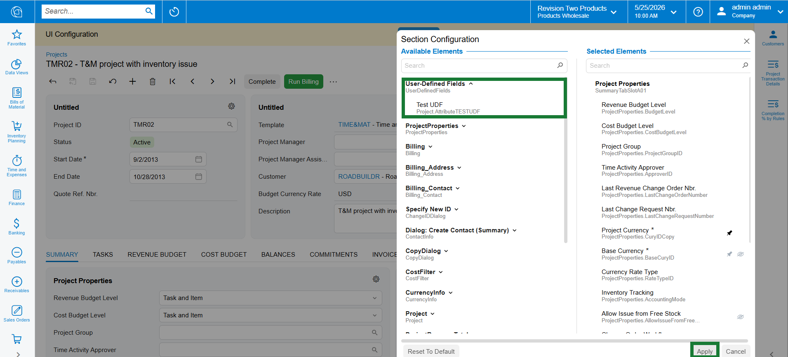
3. Select the Tools button for that screen area, and then expand the User Defined Fields area to select the specific UDF to add. For example, I will add my UDF to the Project Properties section.
a. From here you can also drag the UDF in the list to appear where you would like in the list order.
b. Select ‘Apply’ to preview your changes.
|
ℹ If you do not see the UDF available to select in the list, proceed to Section 2 below. |
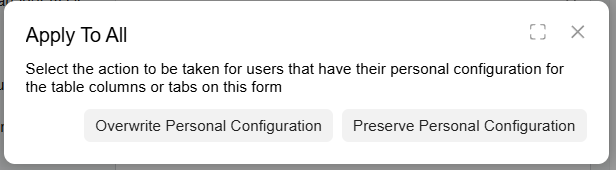
4. After previewing the changes, select to Apply to All on the top toolbar to save the changes.
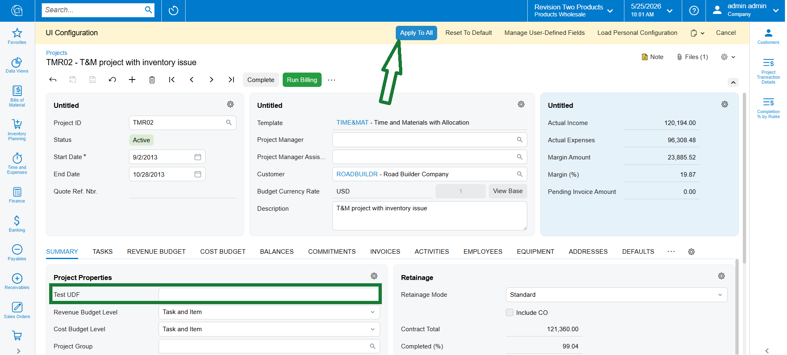
5. The pop up will request if you want to override the personal screen configuration - selecting to overwrite will ensure that the UDF appears for all users, including your own.
Section 2:
If the UDF you are looking for does not appear in the list to add to the screen area, it may not be added to that screen for use. To add an existing UDF to a screen so that you can select it for the Screen Configuration mode, see the steps below.
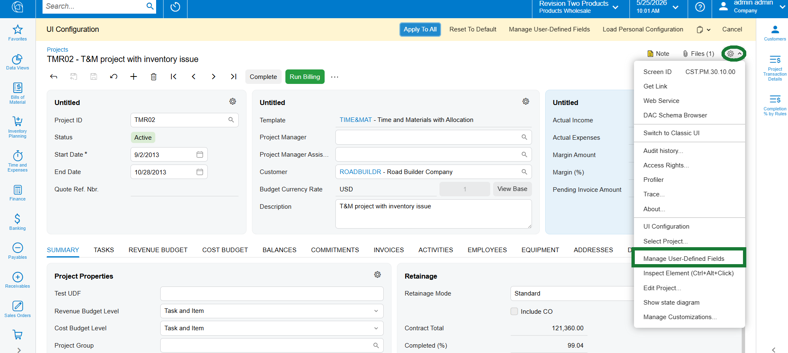
1. Select Manage User Defined Fields from the Tools menu.
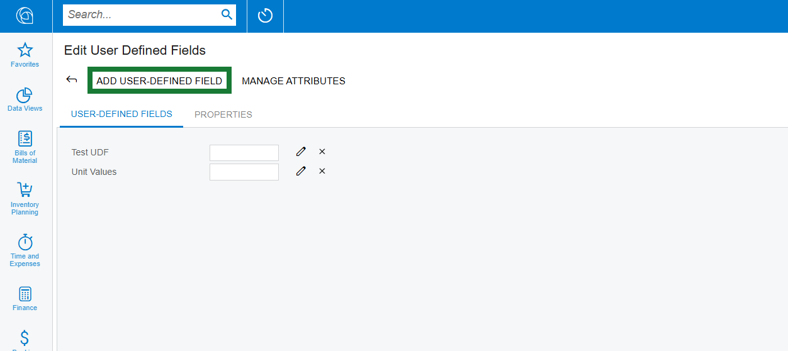
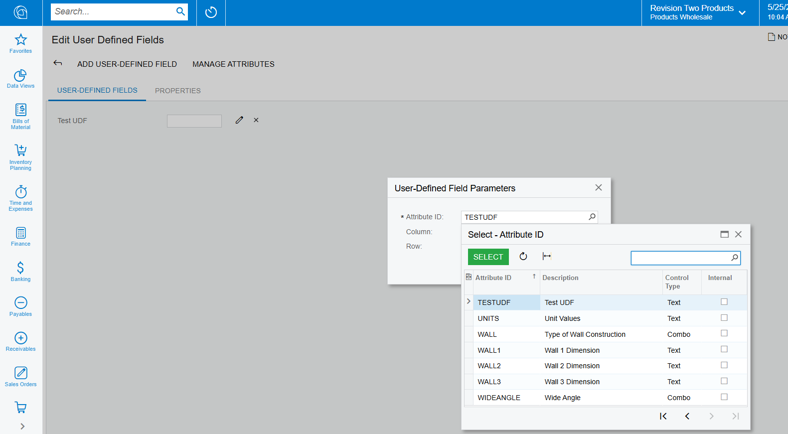
2. On the Edit User Defined Fields screen that opens, select the Add User-Defined Field button
3. In the pop-up for User Defined Field Parameters, search for and select the UDF.
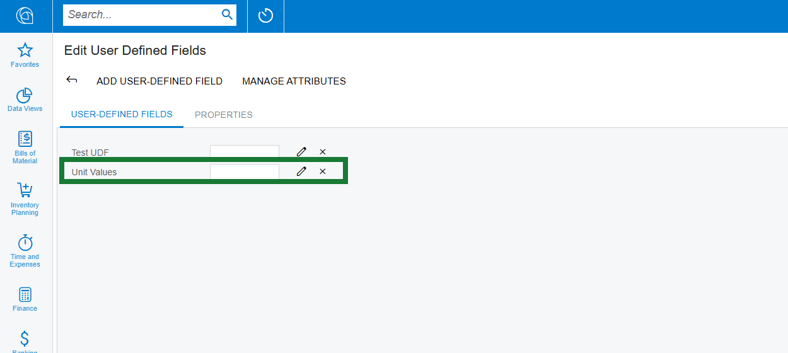
a. In this example, I will add the UNITS (Unit Values) UDF to the Projects screen so that I can manage it using the Screen Configurator.
4. Once added to the screen, proceed with step 1 on this article to add that UDF to a screen area using the Screen Configurator.